Integrations
Integrating Slack
Connect Access Audience to Slack so your team receives notification DMs without leaving their primary workspace.
Step-by-step guide
How it works
The Slack integration sends notification DMs directly to each connected user. A workspace admin must perform a one-time install of the Access Audience app in Slack before individual team members can connect their accounts.
Step 1: Admin installs the Access Audience app
Navigate to Settings → Integrations. Under the Slack Integration card you will see a notice that a workspace admin must install the app first. Click the "Install the app in your Slack workspace" link, or use the direct install link below:
Install Access Audience in Slack
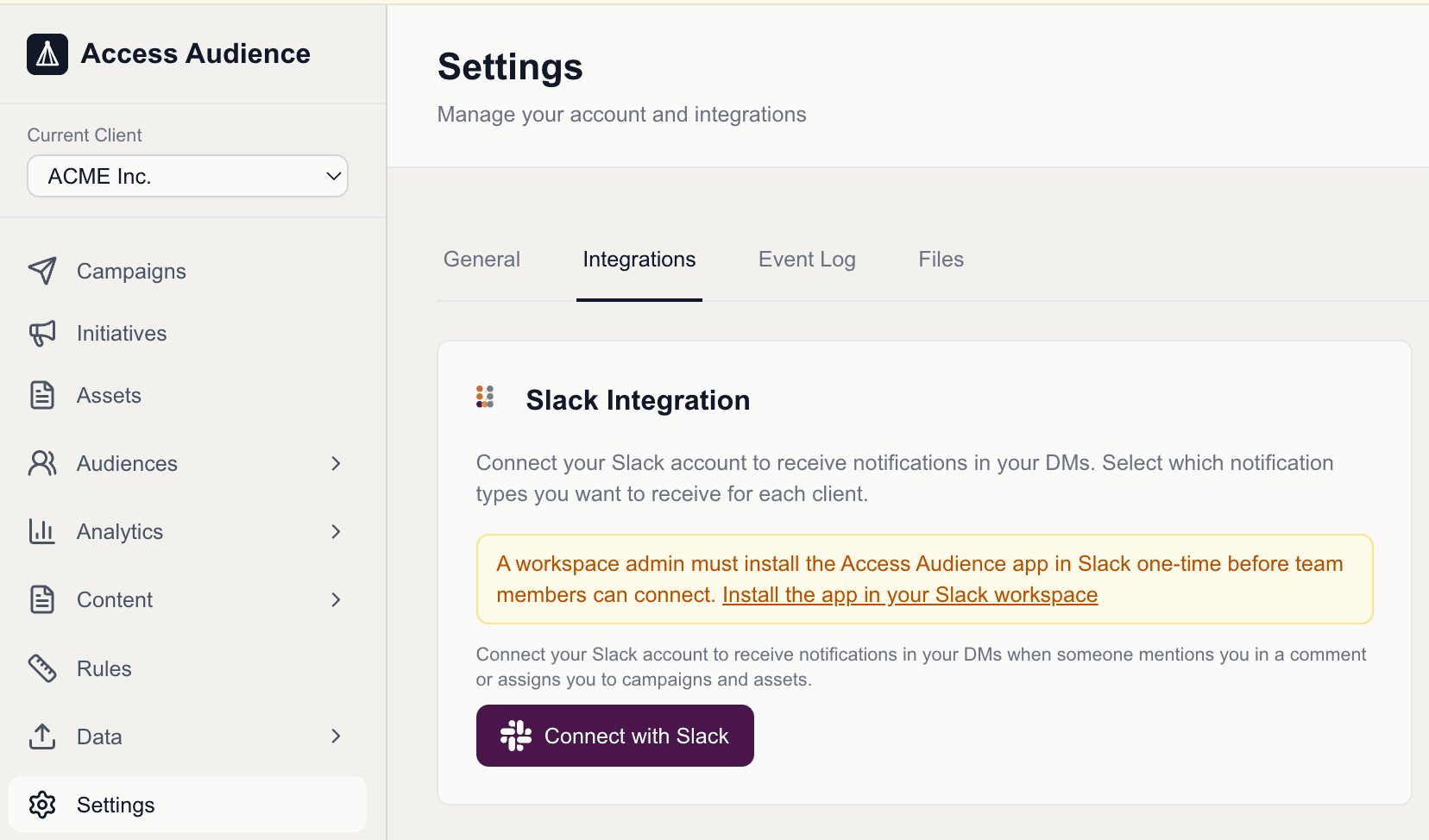
You will be redirected to Slack's OAuth screen. Select the correct Workspace and choose a Channel for webhook. The channel selection is required by Slack, but Access Audience sends DMs directly to users rather than posting in a channel, so the channel choice does not materially affect behavior.
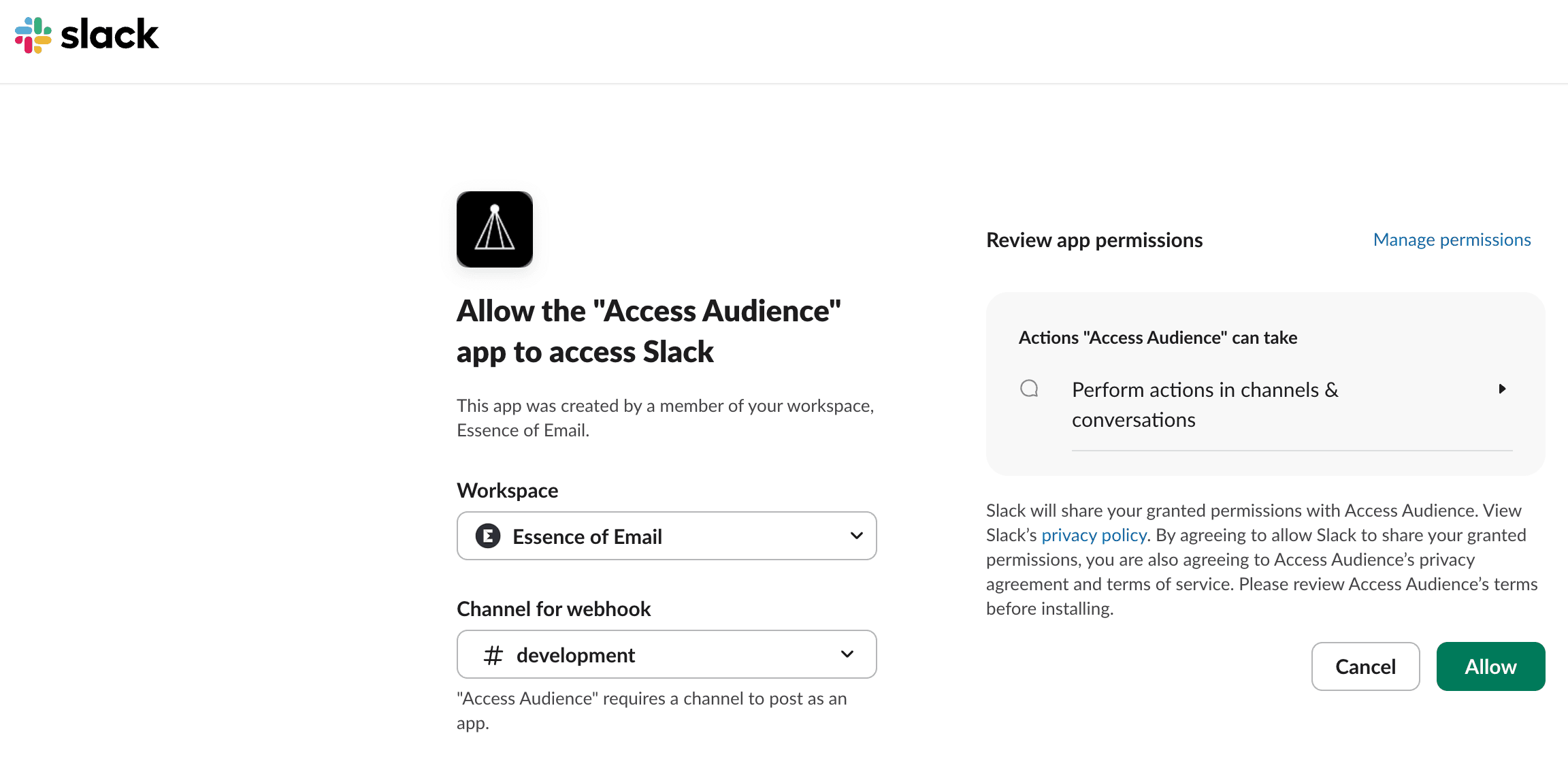
Click Allow to complete the install. This only needs to happen once per Slack workspace.
Step 2: Each user connects their account
Once the admin install is complete, the Slack Integration card will show a "Connect with Slack" button. Each team member goes to Settings → Integrations and clicks the button.
You will be taken to Slack's OAuth consent screen. Select the same workspace and click Allow.
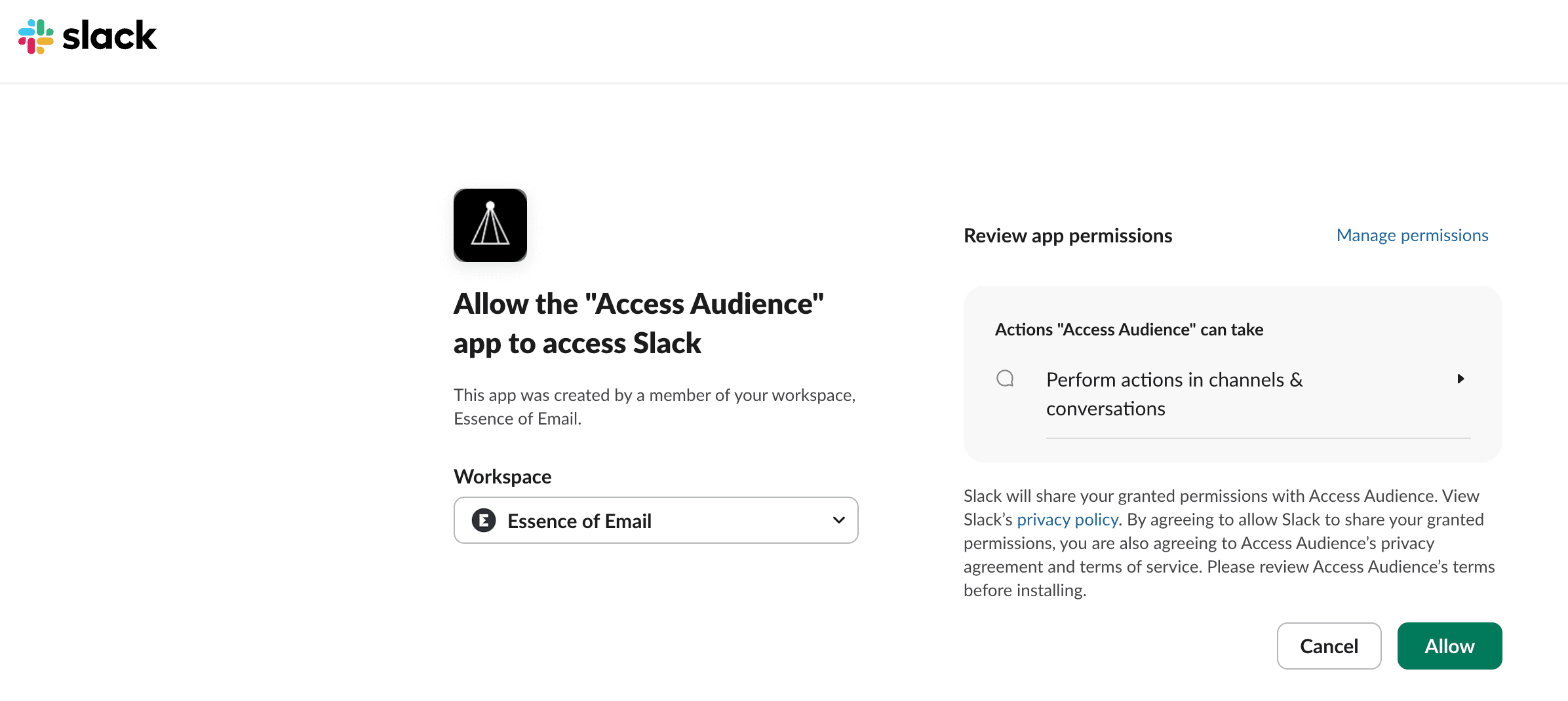
Step 3: Confirm connection
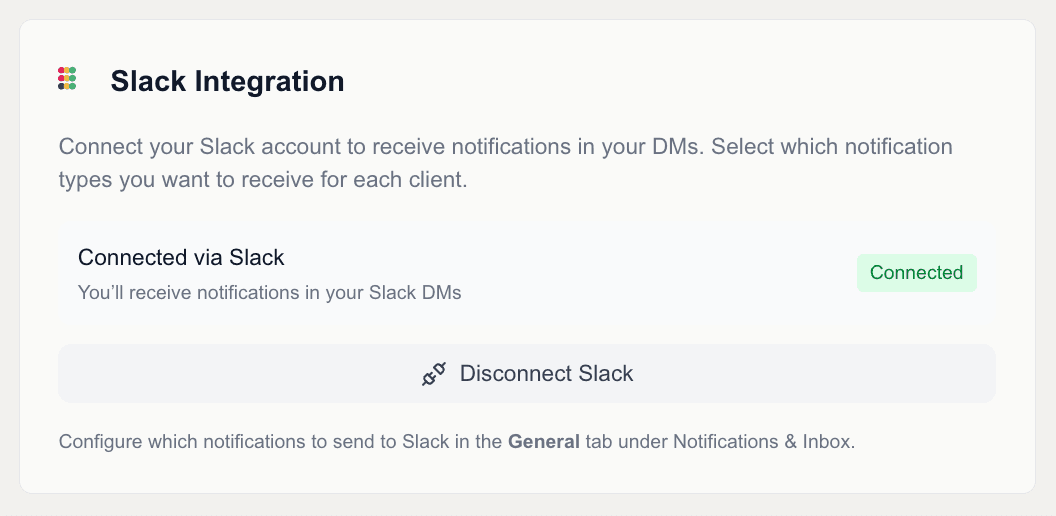
After authorizing, you will be redirected back to Access Audience. The Slack Integration card will show a green "Connected" badge and a "Disconnect Slack" option.
What notifications look like in Slack
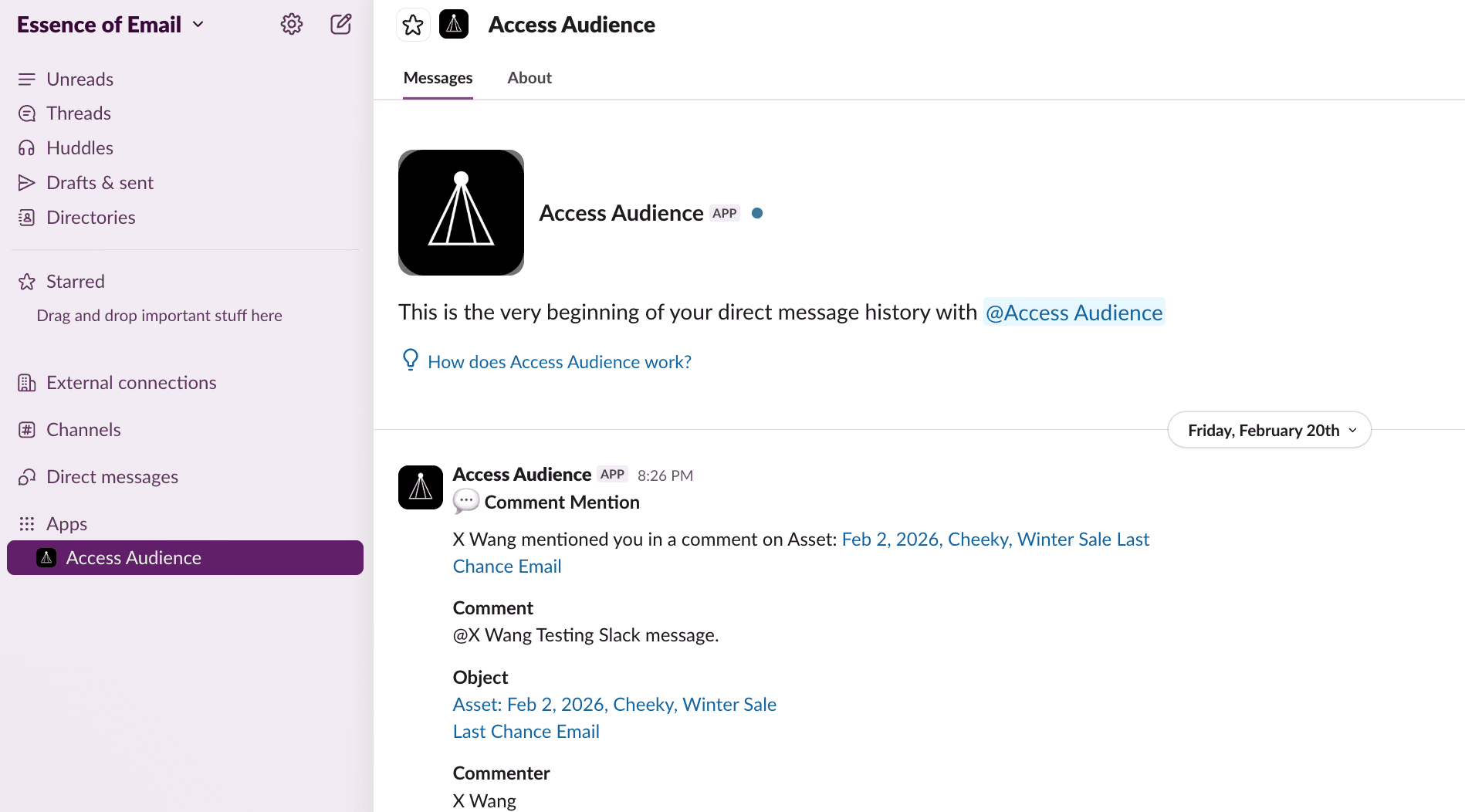
Once connected, the Access Audience app will appear under Apps in your Slack sidebar. Notifications arrive as direct messages from the app — not in a channel. Each message includes the event type (e.g. Comment Mention), a summary of what happened, a direct link to the relevant campaign or asset, and who triggered the action.
Configuring Slack notifications
With Slack connected, go to Settings → General → Notifications and Inbox. You will see a Slack checkbox next to each notification event. Check the events you want delivered as Slack DMs. See the Configuring notifications guide for full details on available events and recommended settings.
Troubleshooting
- Not receiving DMs — Verify that the Slack checkbox is enabled for the desired events under Notifications and Inbox. Also confirm your connection shows "Connected" on the Integrations page.
- Wrong workspace selected — Disconnect Slack and reconnect, selecting the correct workspace during the OAuth flow.